HDR Light Studio 9 Drop 4 released
READ MORE
Blog

HDR Light Studio 9 Drop 4 released

More of What Matters

HDR Light Studio Drop 3 proved that you don't need headline features to make a real impact - sometimes it's the thoughtful, everyday improvements that make the biggest difference. 9 Drop 4 carries that same philosophy forward, with another set of carefully considered refinements that keep making HDR Light Studio smoother and more intuitive to work with.


New View Controls in the Streaming Render View

New View Controls

Many of the 3D apps and renderers that HDR Light Studio connects with can stream their interactive render directly into the HDR Light Studio interface. This means you can focus on lighting your final shot in a single UI, with all the tools and content you need right at hand.

Being able to navigate this streamed image makes a real difference - whether you're zooming into fine details, repositioning to place lights with precision, or examining reflections up close. With this release, the Streaming Render View now includes full navigation controls: zoom, pan, region zoom, 1:1 pixel view, and fit-to-view.

Crucially, these controls navigate the render image itself - not the camera in your host application. That means you can explore every detail of your live render without triggering a re-render or losing progress.

For quick navigation while other tools are active, middle mouse scroll zooms the view and middle mouse button pans - so you never need to switch tools just to reframe.

The render views are also now independent of your OS display scaling, so a 1:1 view always means true 1:1 pixels on your monitor - regardless of your system's UI scaling setting.

Optimized Speed of Streaming Render View

The streaming render view is now noticeably faster thanks to significant performance optimizations.


Isolate Selected Light

Isolate Selected Light in action

HDR Light Studio has always let you solo individual lights from the light list, but now that control is available as a keyboard shortcut too. Press 'S' at any time to solo the currently selected lights, temporarily hiding all others - and press 'S' again to restore them.

This is especially useful when you're in the middle of moving or adjusting a light and want to quickly isolate it to see its true effect on the scene. No need to move the mouse back to the light list and click - just tap the 'S' key to isolate that light and keep working.

Isolate used in conjunction with selecting and view controls

You can also change the selected light without reaching for the light list. The Up and Down arrow keys cycle through the light list from the keyboard, and right-clicking on the render view selects lights using the current LightPaint method - with Reflection mode being particularly powerful, letting you click on a reflection in the model to instantly select the light responsible for it.

Combined with the new view controls for zooming and panning, this means you can navigate your image, select lights, and isolate them entirely from within the render view. Once you've mastered these shortcuts, you can light entire shots with a fast, focused workflow - without ever leaving the image.


Further Enhancements

Render View - Updated Default Settings

The built-in render view now ships with updated defaults that take advantage of modern hardware: resolution has been bumped to 600 × 450, samples increased to 160, and Fast Mode is now enabled by default for area lights. The result is a noticeably higher quality preview that still feels fast and interactive. The previous defaults dated back to 2015 - it was time for a refresh.

Cancel Button for Production Rendering

Previously, once you started a high-resolution production render, you had to wait for it to finish before you could do anything else. You can now cancel a production render in progress at any time, stopping it at the earliest opportunity so you can get back to work.

Drag and Drop to Open Projects

HDR Light Studio project files (HDi) can now be opened by dragging and dropping them straight onto the interface - a quick, convenient alternative to using the file menu.

Collapse to New Light Look

Right-click on a child Light Look to collapse the full hierarchy of parents and children into a new additional single flat Light Look.

Rename Light Looks from Right-Click Menu

Light Looks can now be renamed directly from the right-click menu, making this option much easier to find. Previously, renaming required a double-click - something many users never discovered.

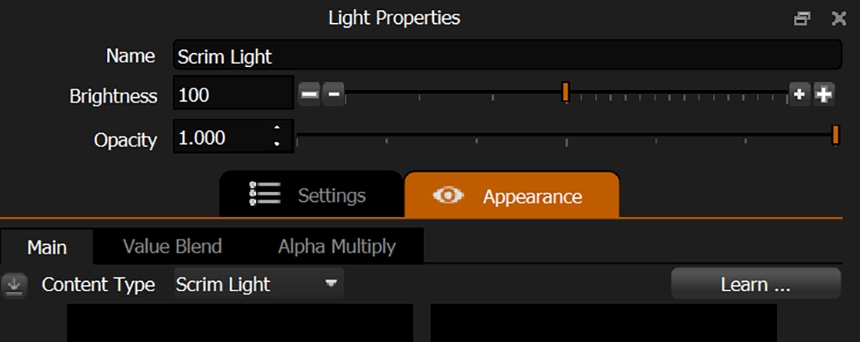
Light Properties UI Refresh

The Settings and Appearance tabs have been given more visual prominence, reflecting how frequently they're used. Property layouts have also been tidied up for a cleaner, more intuitive interface.

Dark Light Tools Bar Light - Improved Settings

The Dark Light now has smarter default settings that prevent unwanted side effects. It no longer affects alpha channels or colour, so it works purely as intended - darkening areas without introducing artifacts.

Motion Blur Advanced - Drag and Drop Image Support

The Mask Image slot now supports drag and drop, bringing it in line with other image slots across the interface.


HDR Light Studio 9 Drop 4 Availability

Existing Customers

Existing customers with active subscriptions can download HDR Light Studio 9 Drop 4 and updated plug-ins from their account at www.lightmap.co.uk now.

Compatibility

For a full breakdown of supported features and plug-in compatibility in HDR Light Studio 9 Drop 4, visit our Compatibility Chart.


New to HDR Light Studio?

Explore all features
Try for free
View Pricing

This entry was posted in HDR Light Studio News.